 JWW Bridge
Export PDF and images, and print
Export PDF
- Open a drawing, choose File > Export… (⇧⌘E) and select PDF.
- Choose the Range, Paper, Orientation and Scale. The preview on the right shows the result.
- Click Export…, then choose where to save the file.
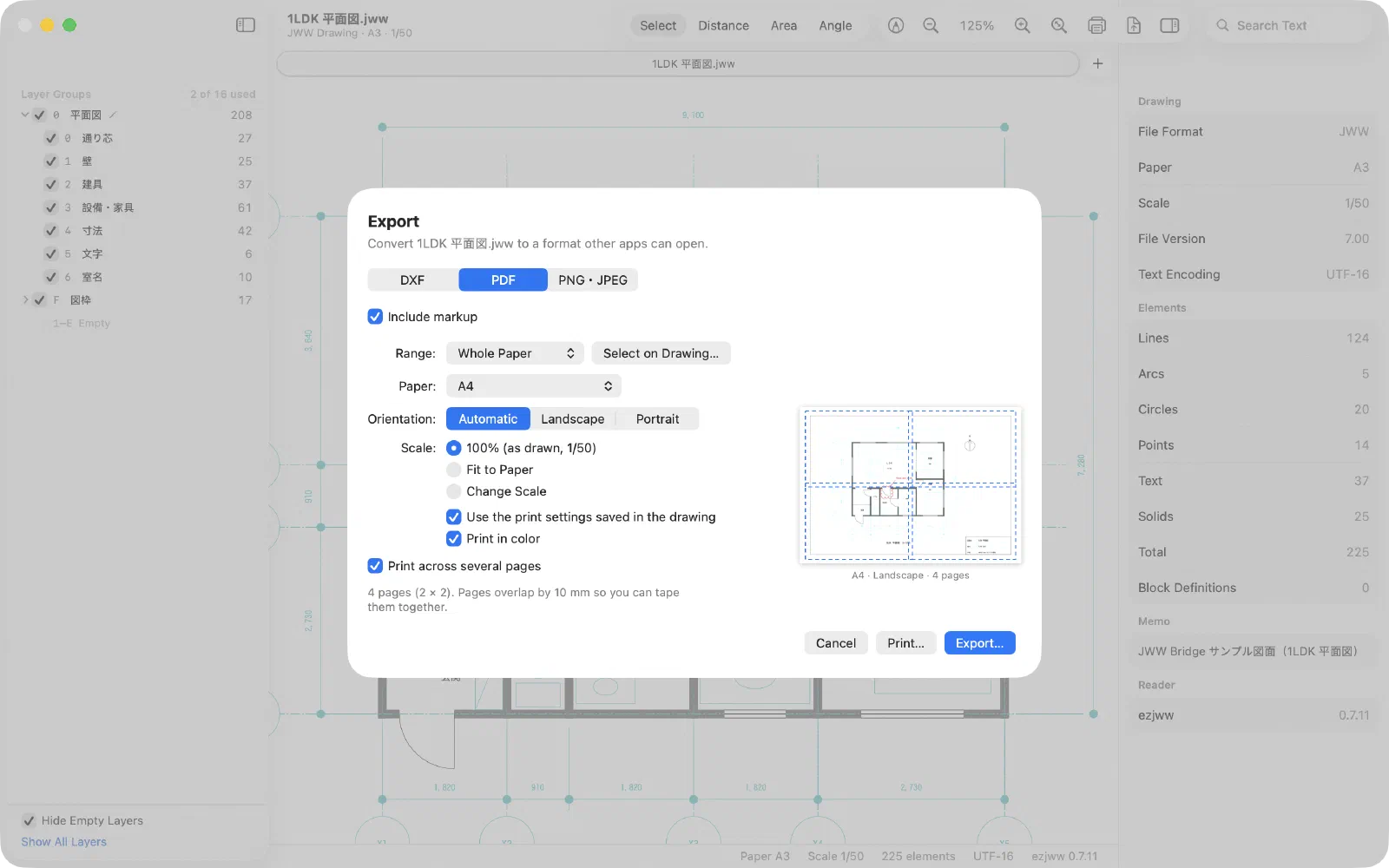
- Range: print the whole sheet, or use Select on Drawing… to print only part of the drawing.
- Scale: 100% prints at the drawing’s scale (a 1:50 drawing stays 1:50). Fit to Paper shrinks the drawing to fit, and Change Scale lets you pick any scale.
- Use the print settings saved in the drawing: uses the print area and orientation set in Jw_cad.
- Print across several pages: splits a large drawing across smaller sheets. Pages overlap by 10 mm so you can tape them together.
- Line weights are matched to how Jw_cad prints. Markup goes on its own layer.
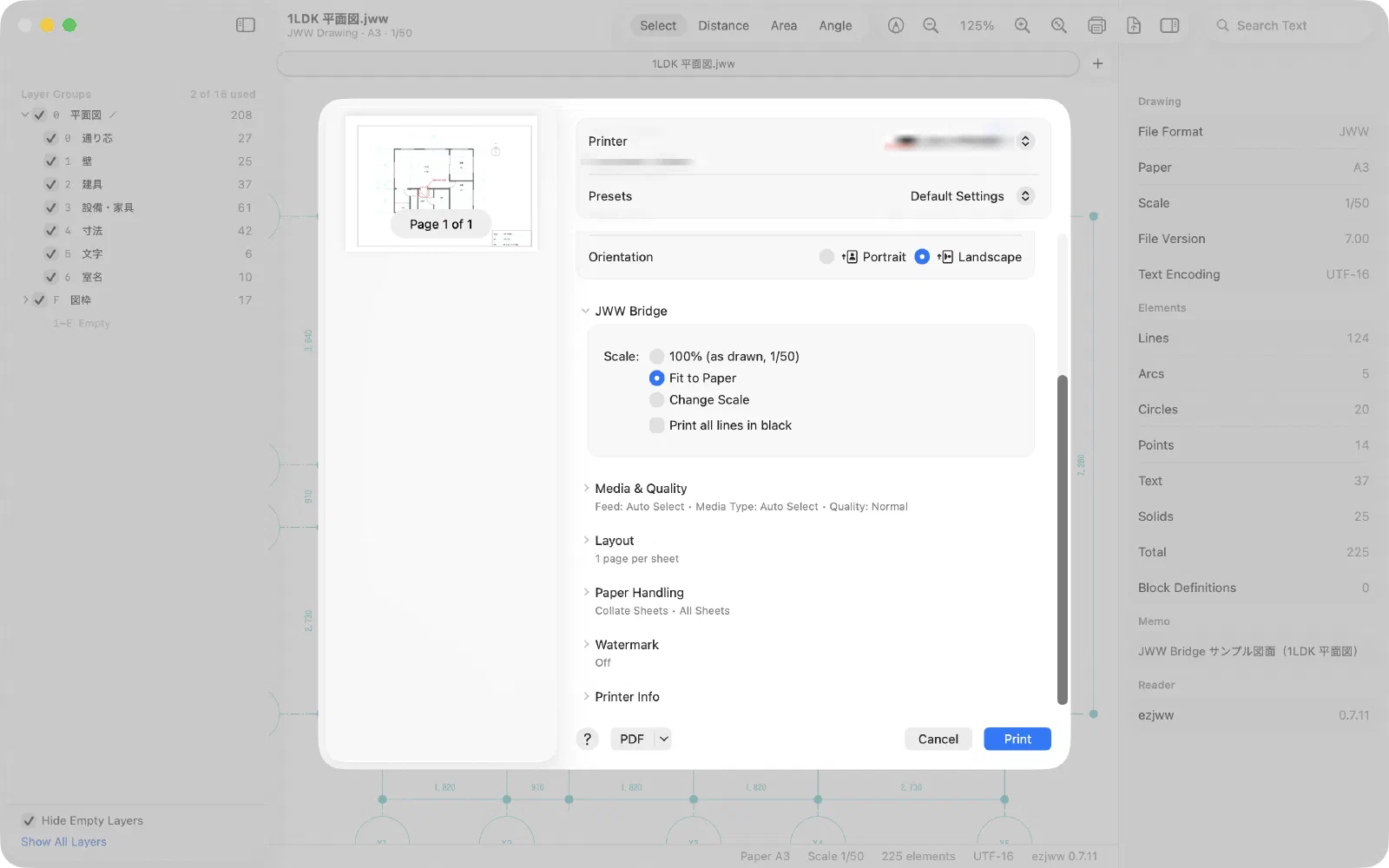
Choose File > Print… (⌘P) to open the Mac print dialog. In the JWW Bridge section, choose the scale (100%, Fit to Paper or Change Scale) and Print all lines in black. You can also print from the Export sheet with Print….
Export images (PNG, JPEG)
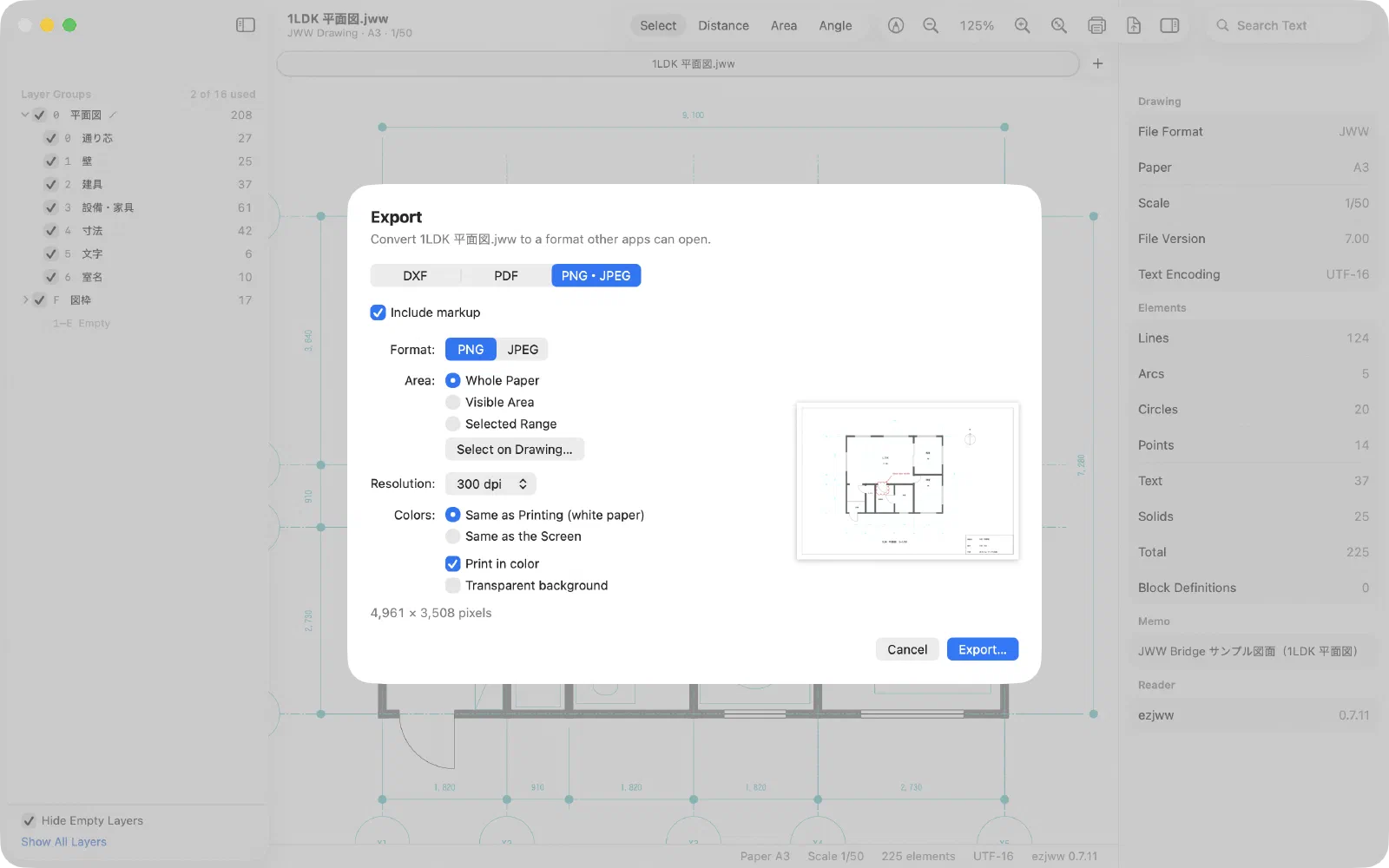
In the Export sheet, select PNG · JPEG and choose the format, resolution and area. You can check the image size in pixels before exporting. Handy for documents, email and chat.
Last updated: 2026-11-10 · Still stuck? Visit the support page.