 JWW Bridge
Measure distances, areas and angles
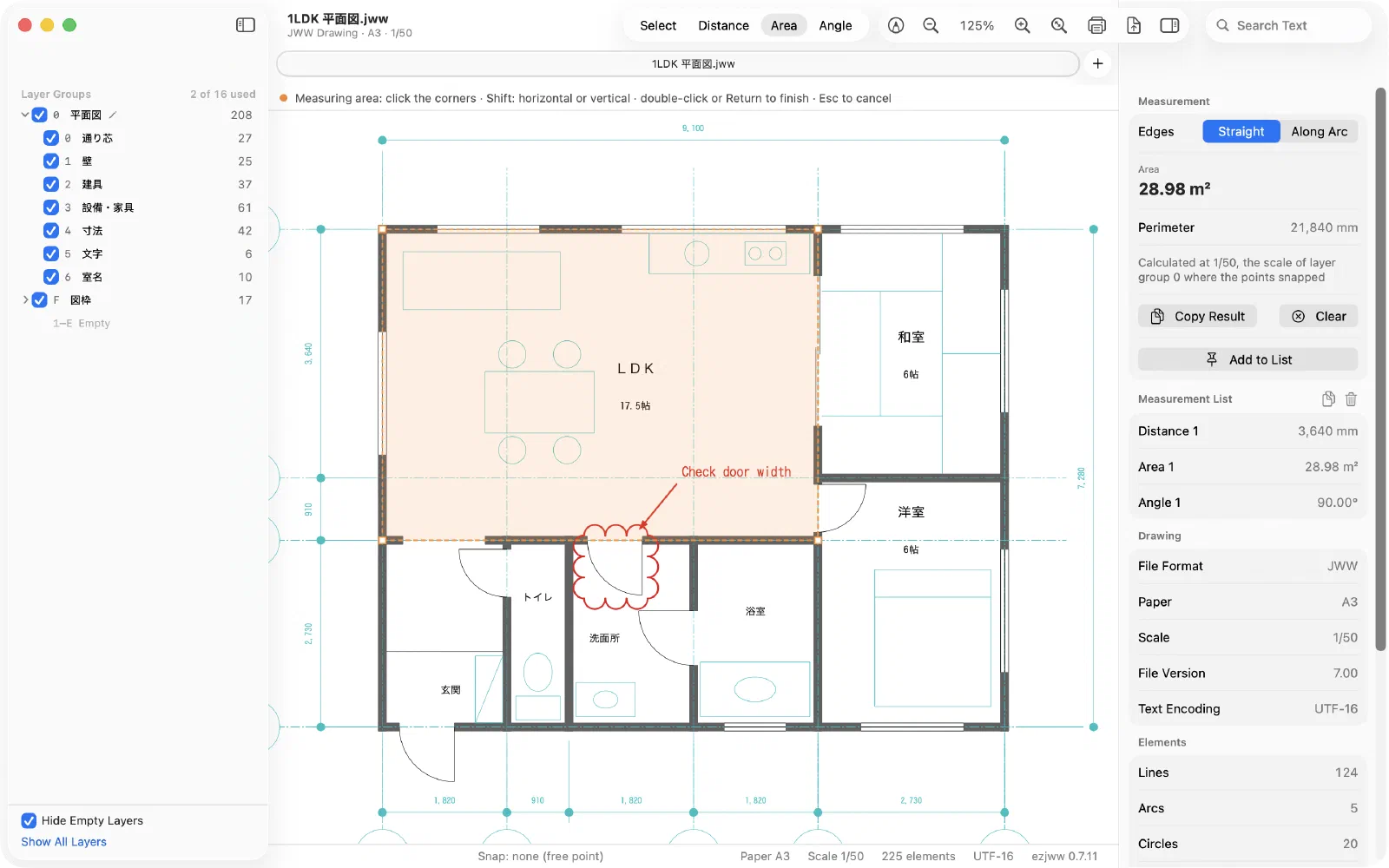
Choose Distance, Area or Angle in the toolbar or the Tools menu. Results appear under Measurement on the right, converted to real-world units using the drawing’s scale.
Distance
- Choose Distance and click the points you want to measure. With three or more points, you get the total length of the path.
- Double-click or press Return to finish.
Area
- Choose Area and click the corners of the area.
- Double-click or press Return to finish. You see the area and the perimeter.
For areas bounded by arcs, choose Along Arc under Edges on the right, then click the arc: that edge follows the arc.
Angle
Click a point, the vertex and another point, or click two lines. The supplementary angle is shown too.
Snapping and locking
- Points snap to endpoints, midpoints, intersections, centers, points, text origins and more. The status bar shows what you snapped to. Choose which kinds to snap to in Settings… > Measure.
- Hold Shift while clicking to lock to horizontal or vertical.
- Press Esc to cancel.
Scale
In drawings that mix scales, JWW Bridge uses the scale of the layer group of the points you snapped to, and shows which scale it used under the result. You can use the current layer group’s scale instead (Settings… > Measure).
Measurement List
Click Add to List to keep a result in the Measurement List. Copy All copies everything, ready to paste into a spreadsheet or email. The list is saved inside JWW Bridge for each drawing; the original JWW file is not changed.
Change the length unit (mm or m) and the number of decimal places in Settings… > Measure.
Last updated: 2026-11-10 · Still stuck? Visit the support page.